 TEGNEMASKIN
The problem
Merge by Distance is all or nothing
A low merge distance leaves gaps unwelded. A higher one catches the gaps, but also vertices that just sit close together: points along a tight edge loop, or an eyeball resting in its socket.
TM Select Doubles shows you every candidate first, sorts out the ones that look like neighbours rather than doubles, and lets you decide.

See before you merge
Doubles as a list you can check
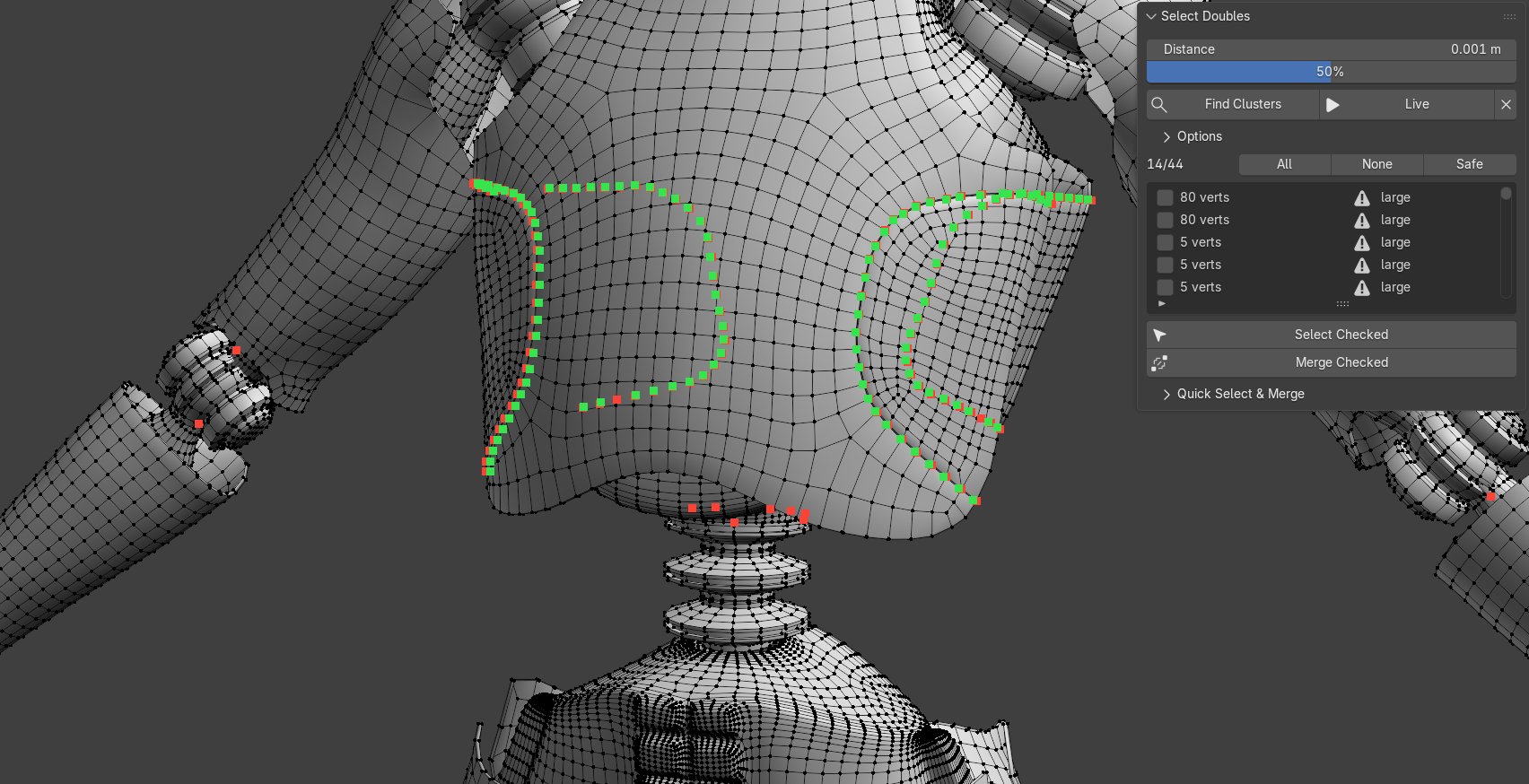
Find Clusters groups the doubles into clusters. A whole split seam shares one row, such as 64 verts (32×2), so a long seam is one decision, not thirty-two.
Each row has a check box. Clusters that look safe start checked; anything suspicious is flagged and left for you to decide. Click a row to select those vertices in the viewport.
Features
Built for models with many parts
A large model joined from dozens of mesh islands, with split seams and parts that only touch, is where blind merging goes wrong.
Dots in the viewport
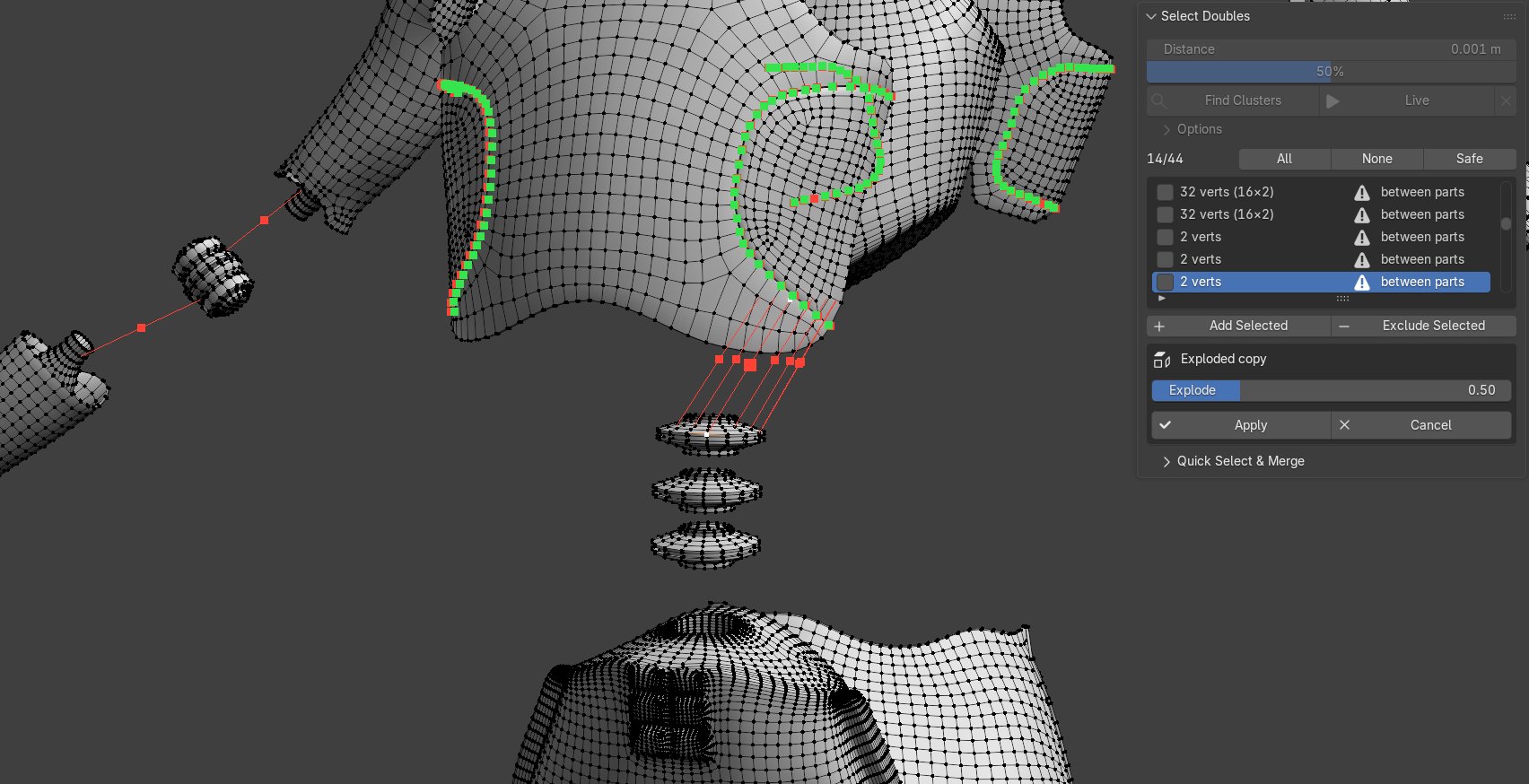
Every cluster gets a dot where the merged vertex will end up, coloured by what Merge Checked will do with it.
Seams as one row
Pairs that follow each other along open edges are grouped, so a split seam is listed and checked as a whole.
Neighbours left out
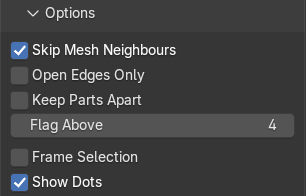
Vertices one or two edges apart, or in the same face, are neighbours, not doubles, and are skipped.
Parts kept apart
Vertices from separate mesh islands that only touch, like an eye in a face, are flagged instead of welded.
Live distance
A log slider from 0.01 mm to 10 cm. With Live on, the clusters and the selection follow as you drag.
Merge to the centre
Each checked cluster merges to its own centre point. Nothing else in the mesh is touched.
Explode to inspect
See a copy of the mesh with its parts pulled apart, so you can tell which pieces a cluster joins. Apply merges in the original.
Fine-tune any row
Take single pairs out of a seam with Exclude Selected, or turn a gap the distance missed into a cluster with Add Selected.
Workflow
Four steps
Most of the work is finding the right distance. The rest is a quick look.
Distance
Turn on Live and drag the slider until the gaps you want to close show up.
Look
Check the dots in the viewport and the list. Red rows are worth a closer look.
Decide
Check or uncheck rows, or use All, None or Safe. Exclude or add single pairs where a row isn't quite right. Live turns off so your choices stay.
Merge
Merge Checked welds each checked cluster into its centre.
Explode Parts
Pull it apart to see what touches
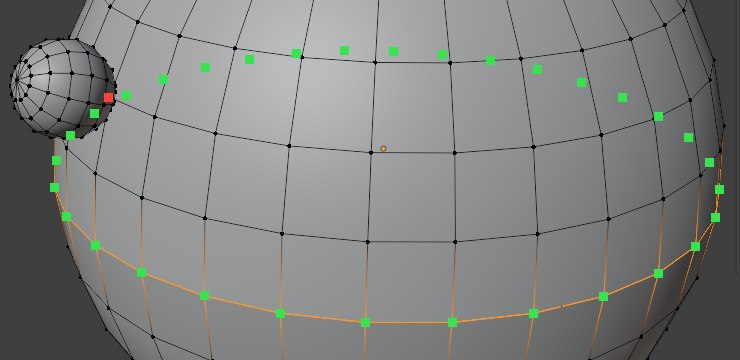
On a joined model it can be hard to see where one part ends and the next begins. Explode Parts makes a copy of the mesh and pulls its parts out from the centre, with a slider for how far.
Parts that a checked row would weld stay together, so what comes apart is exactly what Merge Checked would leave apart. Check a red row and that part slides back in. Rows, dots and selection work on the copy as usual, and Apply merges the checked clusters in the original, with its modifiers, shape keys and vertex groups untouched.
Reference
What the colours mean
Options
Tune what counts as a double
For simple jobs
Quick Select & Merge
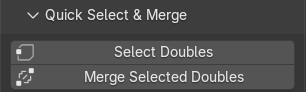
When you just need the classic approach: Select Doubles selects all vertices within the specified distance of another vertex, letting you inspect them before hitting Merge Selected Doubles.
Both are also in the Select menu in Edit Mode.
Good to know
The details
UVs stay where they are. Merging moves vertices, not UV coordinates. Each face keeps its own UVs, the same as Blender's Merge by Distance.
A seam has to line up. Pairs between two mesh islands only count as a seam when open edges on both sides lie on top of each other. Parts that just touch or cross are flagged.
Edit the mesh, find again. If the mesh changes after Find Clusters, the add-on asks you to run it again instead of merging the wrong vertices.
Several objects at once. Works on every mesh in Edit Mode. Explode Parts works on one object at a time.
The exploded copy is only for looking. It is shown without modifiers, and it is deleted again when you apply or cancel. If you add or delete geometry on it, Apply asks you to start over.
Interested?